
Your Site Changed, but Google Still Sees the Old Page
If Google is still showing the old version of a page you updated, there are two possible reasons. Only one of them is up to Google.
By David Cragg, SEO Tucson, in search marketing since 1990. Published .
Sometimes Google simply hasn’t been back yet. That’s normal, and it sorts itself out. But often the old page is still being served, by a cache sitting between your WordPress site and the rest of the world. When that’s the case, Googlebot can come back tomorrow and pick up the old page all over again. Asking Google to reindex won’t help until the caches are cleared, in the right order.
The short version
- First find out whether the old page is still being served, or Google just hasn’t recrawled yet.
- A typical small business WordPress site can have four or five caches stacked on top of each other.
- Response headers tell you which layer answered and how old its copy is.
- Purge from the inside out: theme files, caching plugin, host, then firewall or CDN.
- Ask Google to look again only after a logged-out check shows the new page.
Two problems with the same symptom
When a client tells me Google is still showing the old page, I ask them to do one thing before anything else: open the page in a private window, logged out of WordPress, and look. If the old version shows up there, the problem is on your side of the fence. If the new version shows up, the site is fine and Google just hasn’t recrawled the page yet.
The logged-out part matters. When you’re logged in to WordPress, most caching setups step aside and build the page fresh for you, so you see your edit. Visitors and Googlebot aren’t logged in. They can get a stored copy from an hour, a day or a week ago.
Say a Tucson air conditioning company switches to summer hours in May and updates its contact page. The owner sees the new hours. A customer on the east side sees last month’s, and so does Google. That gap is almost always a cache.
If Google simply hasn’t recrawled, it will. Google’s guide to asking Google to recrawl your URLs explains the options, and its Search Console help says a recrawl request is only worth making for an important change Google hasn’t noticed for a week or more. If the old page is still being served, though, a recrawl just indexes the old page again.
The cache layers between WordPress and Google
Here’s what usually sits between your edit and a visitor on a small business WordPress site, starting closest to WordPress and moving outward:
- Theme and page builder files. Builders like Avada compile your styles and scripts into combined files and keep them until they’re told to rebuild.
- The caching plugin. W3 Total Cache, WP Rocket, LiteSpeed Cache and similar plugins save finished pages and hand them out without running WordPress at all.
- The host’s server cache. Many managed WordPress plans add their own page cache, with its own purge button in the hosting dashboard.
- The firewall or CDN. Sucuri, Cloudflare and services like them sit in front of your server and keep copies of your pages and files.
- The browser. Your own browser holds on to files, especially stylesheets, images and scripts.

Plenty of Tucson business owners have three or four of these without knowing it. GoDaddy, headquartered up the road in Tempe, hosts a lot of small Arizona sites, and it has owned Sucuri since 2017. Its website security products put a Sucuri firewall in front of the site. Add a caching plugin and a page builder, and each layer can be holding a different version of the same page.
Reading the cache headers
You don’t have to guess which layer answered. The response headers tell you. In Chrome, open DevTools, go to the Network tab, reload the page, click the page’s own request and read the response headers. From a terminal, this does the same job:
curl -sI https://www.example.com/your-page/These are the lines I read, and what each one tells me. Mozilla’s reference on Cache-Control covers every directive in detail if you want to go deeper.
| Header | What it tells you |
|---|---|
| Cache-Control | How long browsers and shared caches may keep the response. max-age applies to everyone, s-maxage to shared caches such as a CDN, and no-cache or private changes the rules. |
| Age | How many seconds the copy has been sitting in a shared cache. A large number on a page you changed this morning points at a stale copy. |
| Last-Modified and ETag | Version markers. Browsers and Googlebot send them back to ask whether anything changed. |
| Server and X-Sucuri-ID | A Sucuri firewall answered the request. Sucuri’s own documentation uses these lines to identify its responses. |
| CF-Cache-Status | On Cloudflare, HIT means the edge served its stored copy and MISS means it fetched a fresh one. |
| Content-Encoding | Whether the page was compressed, usually gzip or br. |
| Vary | Which request details make a cache keep separate copies of the same page. |
Content-Encoding is the one I learned to respect the hard way. My own Python checker once reported that my homepage had no structured data at all. The page was fine. The server was sending it compressed, and my script was searching the compressed bytes. Read the headers before you trust what any tool says about the body.
A couple more clues live in the page source itself. W3 Total Cache adds a comment at the very bottom of cached pages that includes the time the cached copy was served, and many caching plugins do something similar. If that timestamp is older than your edit, you’ve found your stale layer.
Purge order: work from the inside out
Order matters because each layer refills itself from the layer behind it. Purge the firewall first, and the next visitor makes it fetch a fresh copy from your caching plugin, which is still holding the old page. The firewall then stores that old page all over again, sometimes for hours. So start at the layer closest to WordPress and work outward:
- Rebuild the theme or builder files. In Avada, that’s Reset Avada Caches. Cached pages point at those compiled files by name, so you want the new files to exist before the page cache rebuilds.
- Purge the caching plugin. In W3 Total Cache, that’s Purge All Caches.
- Flush the host’s server cache from your hosting dashboard, if your plan has one.
- Clear the firewall or CDN cache. Sucuri and Cloudflare both have a purge option in their dashboards.
- Check the page in a logged-out private window and read the headers again. Look for a fresh or missing Age value, a cache miss on the first load, and your new content in the source.

Static files need their own plan. Sucuri’s firewall troubleshooting guide says the firewall keeps caching images, CSS, JavaScript and fonts no matter which caching level you choose. If you change a stylesheet but keep its address the same, visitors can be handed the old file long after you purged the page. The dependable fix is to change the address whenever the file changes. On the dental practice site I manage, the global stylesheet’s URL carries a date stamp, and the date changes every time the file does.
Then, and only then, ask Google
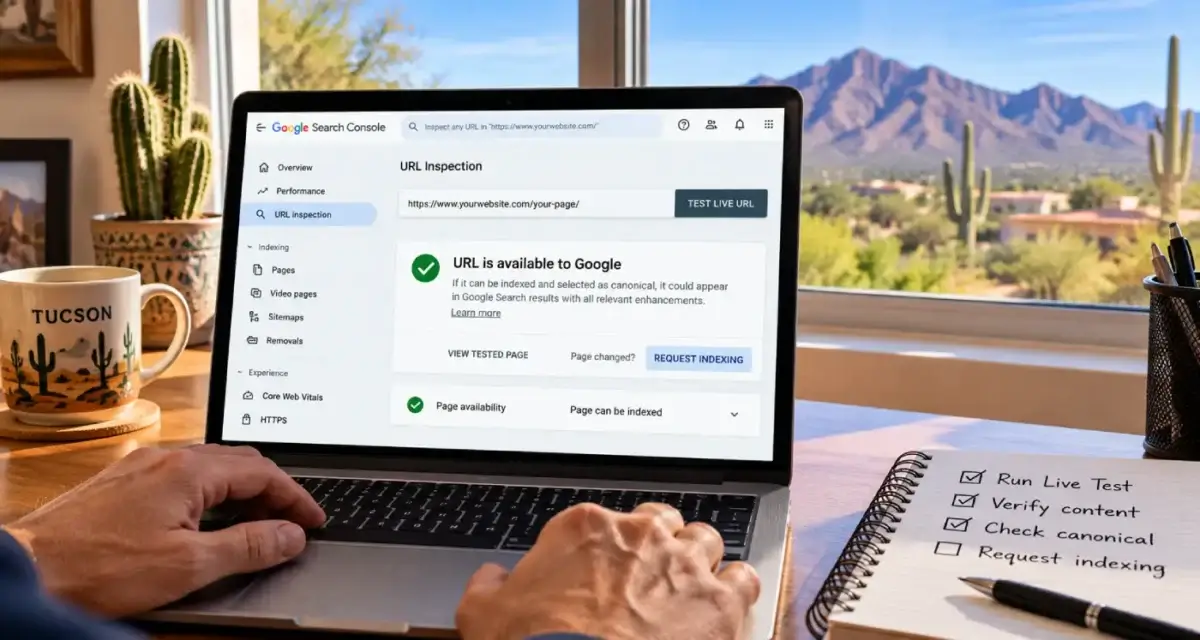
Once a logged-out check shows the new page, open the URL Inspection tool in Search Console and click Test live URL. Google’s live fetch passes through the same firewall and caches your visitors do, so View tested page shows you exactly what Google would get right now. If it’s the new version, request indexing for the pages that matter. If it’s the old one, a layer is still stale.
For the long run, make sure your server tells the truth about change. Google’s post on HTTP caching for crawlers explains that its crawlers support ETag and Last-Modified. Googlebot sends back the ETag it saw last time, and if your server says nothing changed, it answers 304 Not Modified with no page attached. Google recommends ETag as the less error-prone option. A cache that hands out the same ETag after the content has changed is telling Google, very efficiently, that there’s nothing new to see.
Cache setup is part of the technical work I do on client sites, and the rest of that list is on my technical SEO services page. If your site is built on a stack that fights you every time you make an edit, that’s worth a conversation about website design.
Changes not sticking?
Tell me which page and what changed. I’ll read the headers, find the layer that’s holding the old version, and walk you through clearing it in the right order. I answer my own phone.
What clients say
These are reviews clients left on my Google profiles. Most date from my Temecula SEO years in Southern California, before I moved to Tucson in 2022. Dr. Nguyen is still a client today, and that review also appears on my SEO Tucson profile.
David built and developed the website for my business. His customer service and expertise are superior to anyone else I had previously used. How many web development guys had I been through that promise the moon, work hard for a short while, then become difficult to get a hold of later? I’ll tell you: there were 9 in 7 years! Temecula SEO worked with us closely, is VERY knowledgeable and computer savvy! It’s so nice to have a custom website built; and, actually see it rank well on-line! If you want an SEO guy you can count on, David with Temecula SEO is your man!
David at TemeculaSEO is a unique professional. He has been in the industry almost longer than the web has been around. He cares about my success and spends as much time as it takes to make my business succeed. I wish that I could afford to pay him more.
I have been a client of David at SEO Tucson for over 10 years. His wealth of knowledge of SEO marketing has been a tremendous help for my company. He’s always up to date with all the new rules and changes and always willing to try new things to help push and keep my company on the top of Google listing
David is great to work with. He takes his job seriously, is a wealth of knowledge not only in SEO, but also business in general. If you are looking to for someone to handle SEO for you - you can stop looking now.
Questions about caches and updated pages
Why can I see my changes but my customers can’t?
You’re probably logged in to WordPress, and most caching setups build a fresh page for logged-in users. Visitors who aren’t logged in get a stored copy from your caching plugin, host or firewall. Check the page in a private window while logged out to see what customers and Googlebot see.
What order should I clear my website caches in?
Work from the inside out: rebuild your theme or page builder files first, then purge your caching plugin, then your host’s server cache, then the firewall or CDN. Clearing an outer layer first lets it refill from an inner layer that’s still holding the old page.
How can I tell which cache served a page?
Read the response headers in your browser’s developer tools or with a curl command. Headers such as Age, CF-Cache-Status, and Sucuri’s Server and X-Sucuri-ID lines show whether a shared cache answered and how old its copy is. Caching plugins often add a timestamp comment at the bottom of the page source as well.
Does clearing my cache make Google recrawl my page?
No. Clearing caches only changes what your site serves the next time someone asks. Google recrawls on its own schedule. For an important change, use the URL Inspection tool to test the live URL, confirm Google gets the new version, and then request indexing.
Why didn’t my CSS change show up after I purged everything?
Stylesheets are often cached separately from pages, by browsers and by firewalls. Sucuri, for example, caches CSS, JavaScript and images regardless of its caching level. Change the file’s address whenever the file changes, usually with a version number or date in the query string, so every layer treats it as a new file.
What does the Age header mean?
Age is the number of seconds a response has been stored in a shared cache such as a CDN or firewall. No Age header, or a small number, means a fresh response. A large Age on a page you edited this morning means you’re looking at a copy made before the edit.
Can a wrong ETag stop Google from seeing my update?
It can. Googlebot sends back the ETag from its last visit, and if your server says it still matches, the reply is 304 Not Modified with no page. If your setup keeps the same ETag after the content changes, it’s telling Google nothing changed. Make sure the ETag changes whenever the page does.
Will purging every cache slow my site down?
Briefly. The first visitor to each page after a purge waits while the page is rebuilt and stored again, so those first loads are slower until the caches warm up. On a small site that lasts minutes. It’s a good reason to purge deliberately after real changes rather than clearing everything out of habit.
How long until Google shows the updated page in search results?
Once your site serves the new version, it depends on when Googlebot recrawls the page and when Google processes it. For an important page, requesting indexing after a successful live test usually speeds things up, but Google doesn’t promise a timeline. Pages Google sees as rarely changing get revisited less often.
More on technical SEO
Why PageSpeed Insights and Search Console Disagree About Your Speed
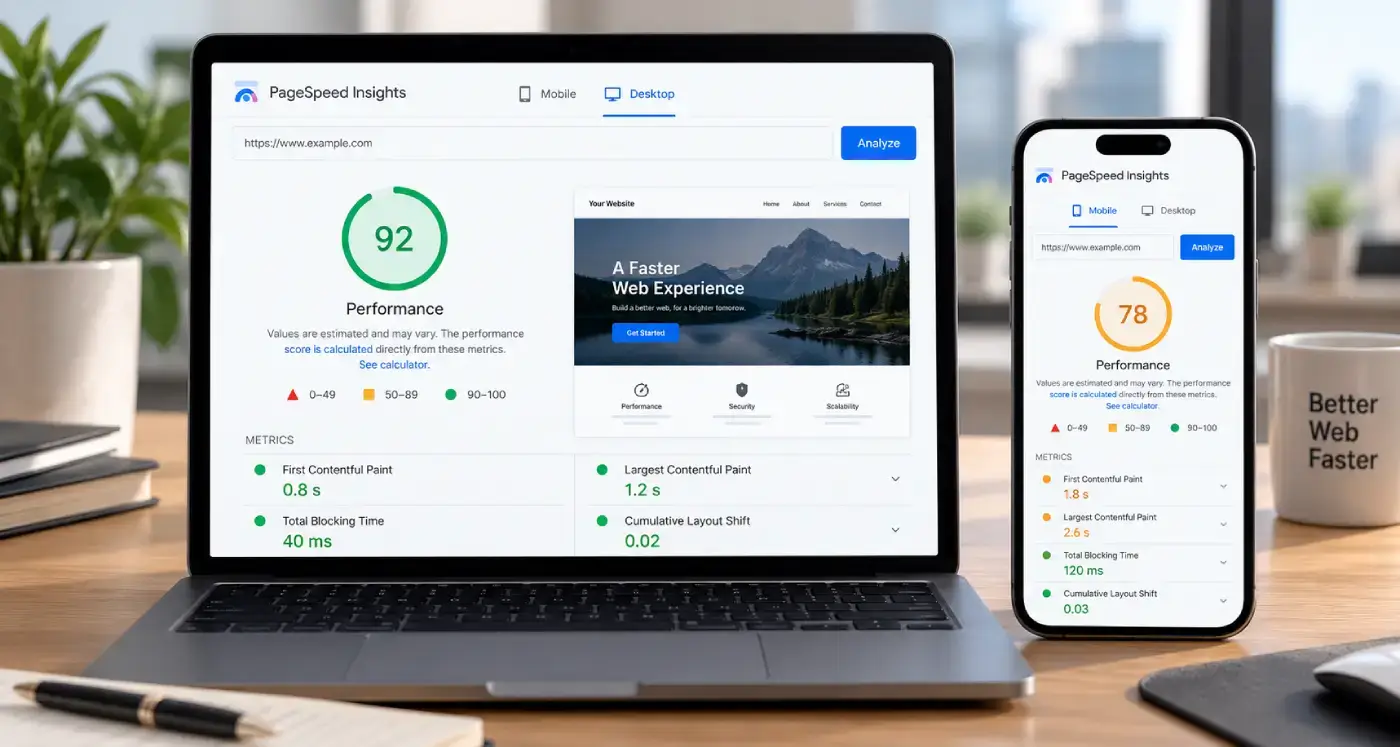
A green 95 in PageSpeed Insights and a Poor rating in Search Console can both be true.
“Crawled, Currently Not Indexed” and the Rest of the Page Indexing Report
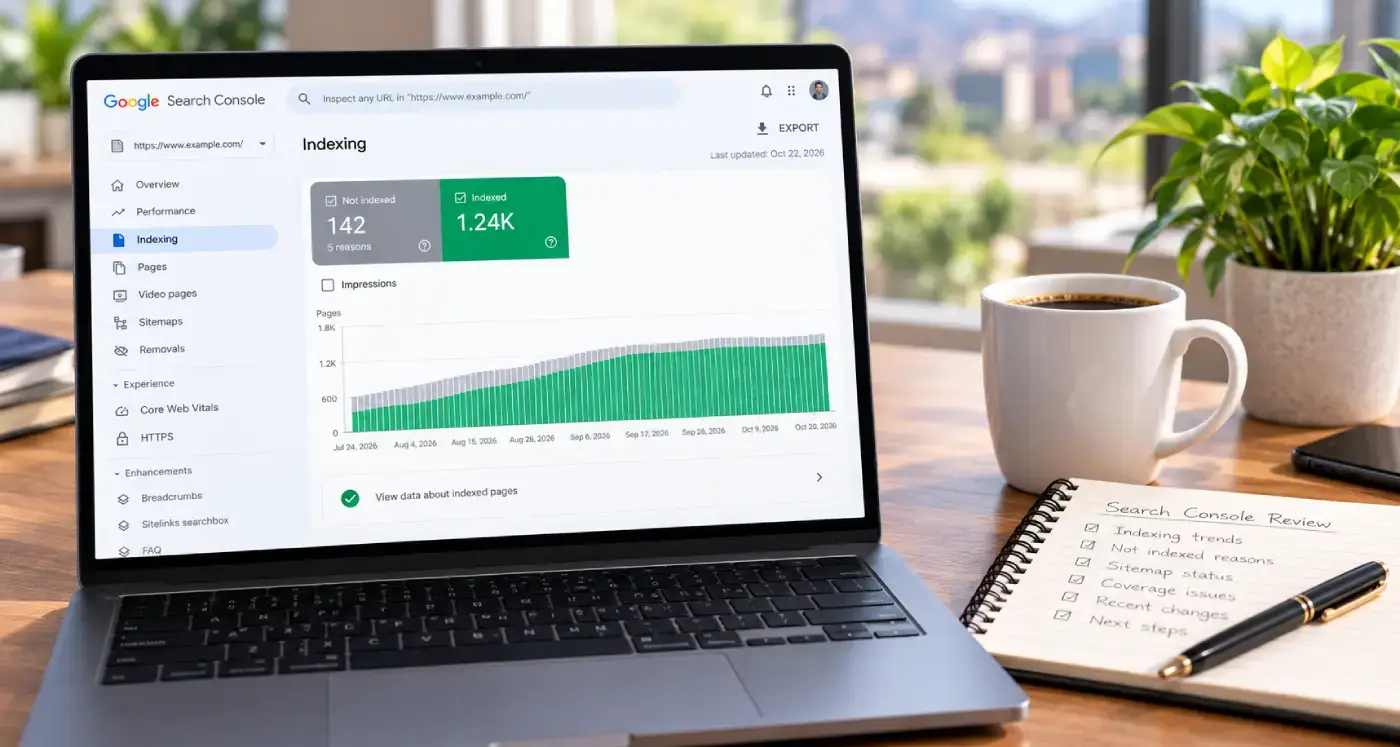
Most of the gray in Search Console’s Page indexing report is supposed to be there.
Two Schema Blocks Saying Two Different Things
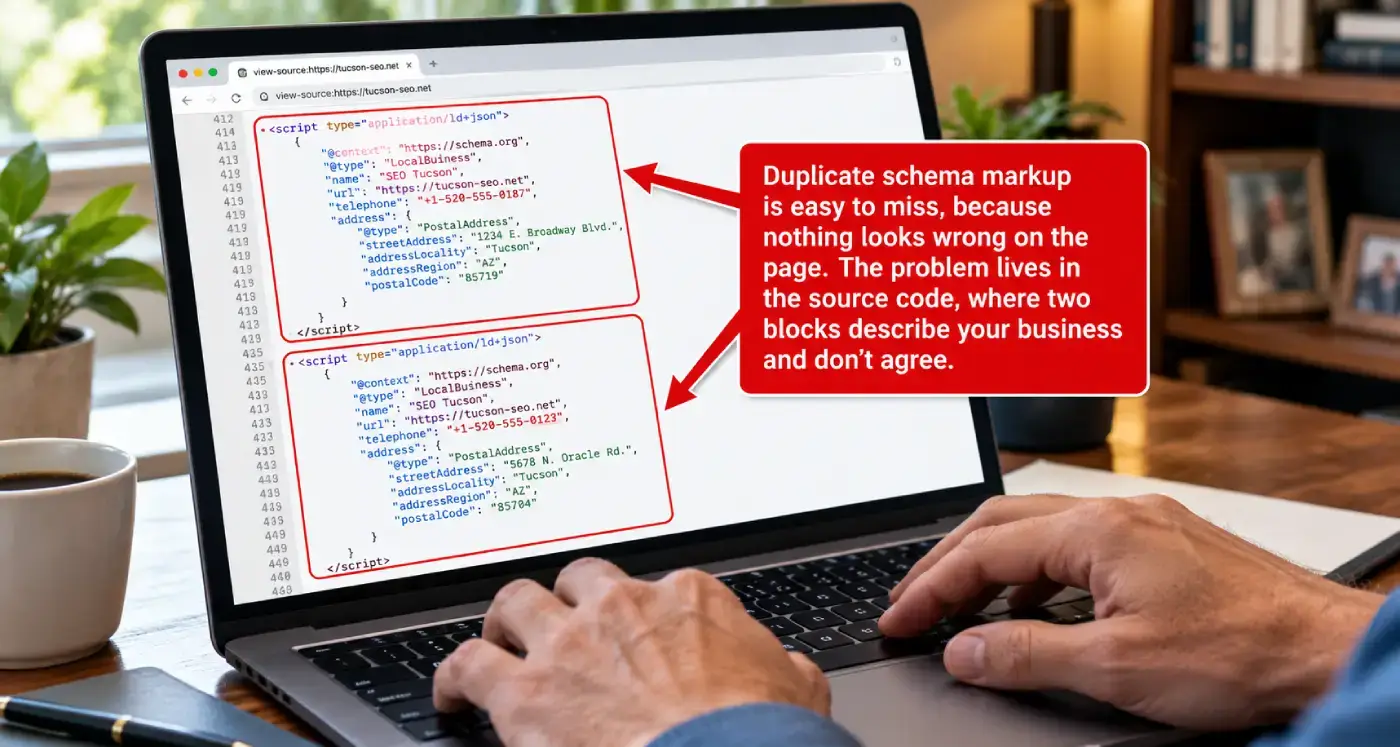
When the theme, the SEO plugin and an old snippet each describe your business, they rarely agree.
Technical SEO services
What I check and fix on client sites: crawling, indexing, speed, schema and the plumbing underneath.
SEO Tucson, David Cragg
Tucson, Arizona. Serving Tucson, Oro Valley, Marana, Catalina Foothills, Sahuarita, Green Valley, Vail and the rest of Southern Arizona.
Written by David Cragg. Published October 23, 2026. Last reviewed October 23, 2026. Drafted with AI assistance, then edited, fact-checked and approved by David before publication. How I use AI, and what it is never allowed to do.